A stable presentation starts long before the first song. The operator needs enough time to check the computer, display connection, media files, song order, and service plan before the congregation enters the room. A structured church operator checklist reduces last-minute troubleshooting and makes technical problems easier to isolate.
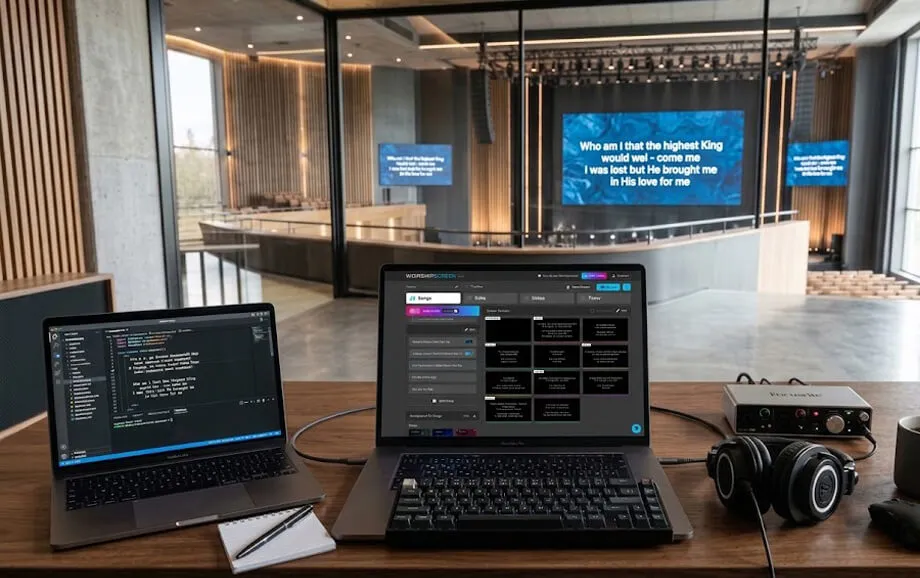
Good worship service preparation also protects the operator from unnecessary pressure. When the presentation, hardware, and first live item are ready in advance, the presentation operator can concentrate on timing and cues instead of correcting avoidable mistakes during the service.
Checking the Computer and Equipment
The technical check should begin before presentation content is reviewed. A perfectly prepared playlist is useless if the computer cannot send a stable image to the church screen or if an adapter fails just before the service.
Starting the Computer
Turn on the presentation computer early enough for the operating system, browser, presentation software, and background services to load completely. Connect it to mains power rather than relying on the battery for the entire service.
Check that no operating-system update, restart request, or unexpected notification is likely to interrupt the presentation. Unnecessary applications should be closed to reduce distractions and free system resources.
Checking the Screen Connection
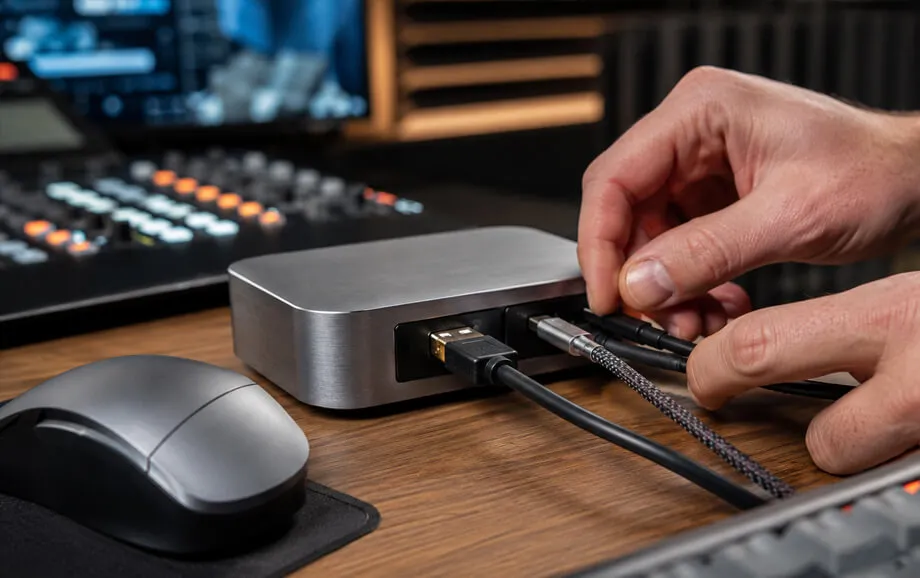
Confirm that the projector, LED display, or television receives a stable signal. If two displays are used, check that the operating system is in the correct mode — usually an extended desktop when the operator needs a private control interface.
The physical signal path should also be verified. A basic pre-service check includes:
the correct HDMI, DisplayPort, or USB-C output;
secure cable and adapter connections;
the correct input selected on the display;
the expected resolution and aspect ratio.
After this check, open actual presentation content on the audience display rather than relying only on the desktop background as proof that the connection works.
Checking the Keyboard, Mouse, and Other Devices
Test the keyboard, mouse, presentation remote, touchscreen, or any other device used during the service. Wireless peripherals should have sufficient battery charge and a reliable connection.
If the operator depends on a specialised shortcut or remote-control button, test that exact function. Discovering that the mouse works does not confirm that every control device is ready.
Checking the Church Presentation
The next stage of the church operator checklist is content verification. The operator should work with the same file, playlist, or presentation that will actually be used during the service.
Opening the Correct Presentation
Confirm the service date, playlist name, and version before making any changes. Similar file names can easily lead to an older service plan being opened by mistake.
If a browser-based platform such as WorshipScreen is used, verify that the correct account and service playlist are open and that the live output launches on the intended display.
Checking the Structure
Review the complete sequence from the first item to the final slide. Compare it with the latest order of service received from the worship leader, pastor, or coordinator.
The operator should know where the main transitions occur: worship set, prayer, Scripture, sermon, announcements, offering, communion, or other service-specific elements.
Checking Fonts and Display
Every important slide should be checked on the actual church screen, not only on the operator monitor. Font size, line breaks, contrast, image scaling, and safe margins can look different on a projector or LED display.
Text must remain readable from the back of the room. If lyrics or Scripture appear crowded, the problem should be corrected before the congregation arrives rather than during live operation.
Checking Song Lyrics
Songs deserve a separate review because they usually require the fastest sequence of live changes. Reliable worship service preparation means checking both the content and the structure of every song in the set.
Song Order
Compare the playlist with the final song list. Confirm that the opening song, transitions between songs, and any reprise planned later in the service are placed correctly.
If two versions of the same song exist, verify that the selected version matches the arrangement the worship team will use.
Accuracy of the Lyrics
Check spelling, punctuation, missing lines, and incorrect words. Names and unusual theological terms deserve additional attention because automatic spell-checking may not recognise them.
The most useful review covers three points:
lyrics match the version being performed;
line breaks are comfortable to read;
no verse or chorus is missing.
A corrected song should be saved before rehearsal so the same mistake does not reappear in future playlists.
Repeats and Transitions
The presentation operator should understand the structure of each song rather than simply follow slides in numerical order. Worship leaders may repeat a chorus, return to a bridge, or skip a verse.
Knowing how sections are organised makes it possible to respond without searching through the playlist while the congregation is already singing.
Checking Announcements and Additional Content
Supplementary media often causes problems because it may come from different people and devices. Every video, image, and announcement should therefore be tested on the presentation computer itself.
Information Slides
Verify dates, times, locations, contact details, QR codes, and event names. A visually polished announcement is still incorrect if one practical detail is outdated.
Slides should also be readable within a few seconds because announcements are normally displayed for a limited time.
Videos
Open every video from the exact location or link that will be used during the service. Test playback from beginning to end when possible, especially if the file is newly supplied.
The operator should confirm five details before using video live:
the file opens without delay;
video playback is smooth;
audio reaches the correct sound system;
the image uses the expected aspect ratio;
online content loads reliably over the church internet connection.
YouTube and other streaming sources deserve an earlier check because their reliability depends on the network as well as the presentation computer.
Images and Background Materials
Review resolution, cropping, orientation, and contrast. A background that looks attractive on a laptop can make white lyrics difficult to read once it is projected at full size.
Keep frequently used backgrounds and emergency fallback images easy to access.
Checking the Order of Service
The service plan connects the technical presentation with what is happening on stage. This part of worship service preparation should be completed with the latest information, not an early rehearsal version.
Order of All Service Elements
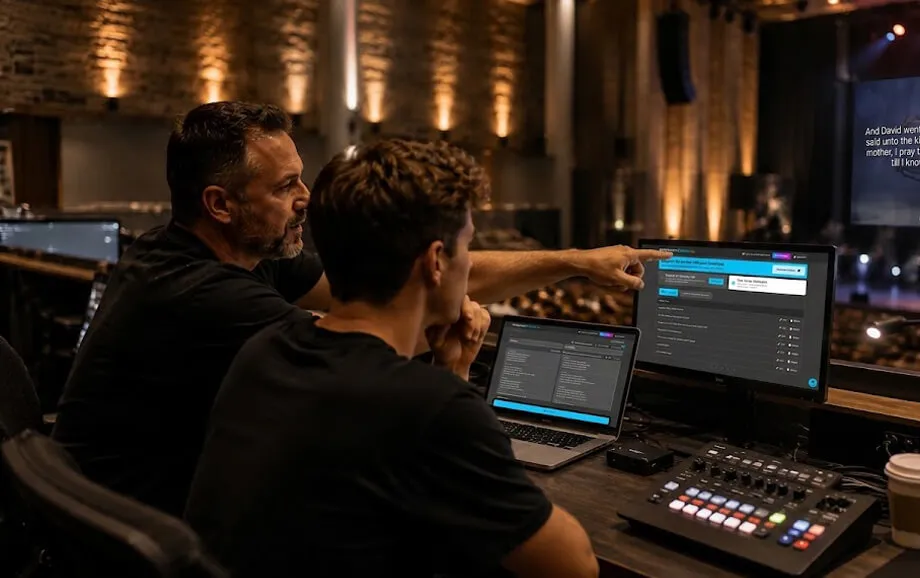
Read through the service chronologically and make sure every required visual item is available. The operator should understand not only what comes next but also what cue signals the transition.
This allows the presentation operator to anticipate rather than react late.
Special Moments
Identify elements that require unusual handling: communion instructions, baptism videos, guest speakers, testimonies, prerecorded messages, special prayers, or a countdown.
Any moment that changes the normal presentation workflow should be discussed before the service begins.
Last-Minute Changes from Ministry Leaders
Set a clear deadline for routine changes, while still allowing genuine last-minute adjustments. When a change arrives, update the main service plan rather than relying on a verbal reminder.
After editing, confirm that the new item appears in the correct position and can be opened immediately.
What to Check Immediately Before the Service Starts
The final check should be short. At this stage, the goal is not to rebuild content but to verify that the system is in the exact state required for the first live cue.
Is the Image Being Displayed?
Look at the audience display itself. Confirm that the projector, television, or LED wall shows the expected image and that no desktop, browser controls, or operator windows are visible.
This final visual confirmation is one of the most important steps in any church operator checklist.
Is the Correct Screen Open?
Make sure the control interface remains on the operator monitor while the live output is positioned on the church screen. If the computer has been restarted or reconnected, display order may have changed.
Check full-screen mode, cursor position, and any secondary windows before the room becomes quiet.
Is the First Slide Ready?
The first required item should already be selected and ready to display. The operator should not begin the service by searching through folders or playlists.
Once the first slide, song, or countdown is prepared, the workstation can remain untouched until the actual cue. That final discipline allows the operator to begin calmly and gives the technical team confidence that the presentation system is ready for the service.