A church presentation often combines several types of content: worship lyrics, Scripture passages, announcements, images, videos, and countdowns. When these materials are opened in separate programs, the operator has to move between windows, locate files, and confirm that the correct content is being sent to the congregation’s screen.
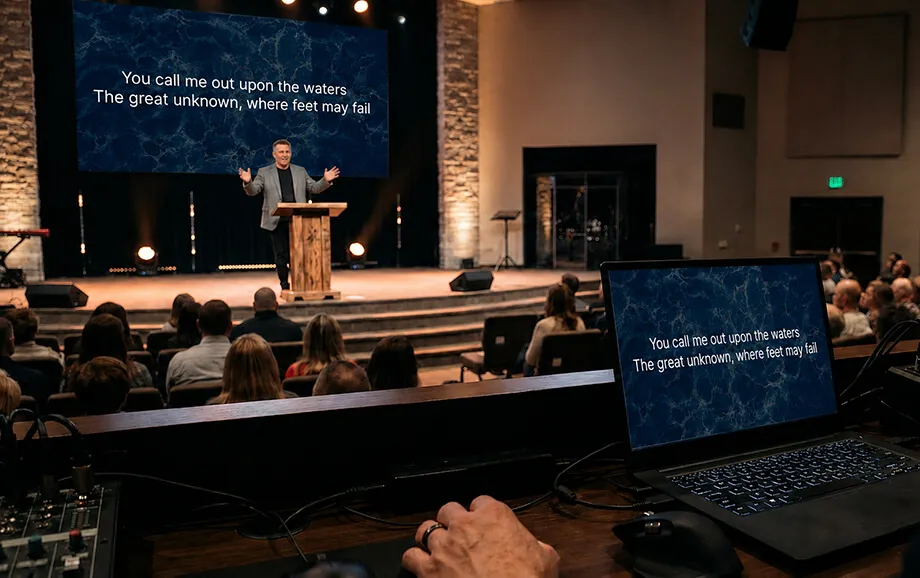
Centralised worship service presentation control brings these tasks into one working environment. The operator prepares the service plan on a single computer, opens a separate presentation window, and manages the content shown on a projector, television, or LED screen without displaying the control interface to the audience.
What Managing a Worship Service Presentation from One Computer Means
Managing a worship service presentation from one computer means using one device as the central point for preparing, organising, and displaying all visual materials. The same computer stores or accesses the required content, runs the control interface, and sends the live output to the main display.
This approach separates two working areas. The operator sees the playlist, editing tools, navigation controls, and available media. The congregation sees only the active song slide, Bible passage, image, video, or timer in a separate presentation window.
A standard setup includes four main elements:
A computer with a supported web browser and stable internet access.
A prepared playlist containing the materials required for the service.
A projector, television, or LED display connected to the computer.
A separate live output window shown on the congregation’s screen.
The output display is usually connected through HDMI or another video interface supported by the computer and screen. The operating system display settings must be configured so that the presentation window appears on the external screen while the control panel remains on the operator’s monitor.
As browser-based worship service software, the platform allows the operator to manage songs, Bible passages, images, videos, and timers from one device. No separate desktop presentation application needs to be installed.
This centralised structure simplifies church screen control because the operator does not have to coordinate several computers or manually switch the screen input between unrelated devices. Content remains available within the same service playlist and can be opened in the required order.
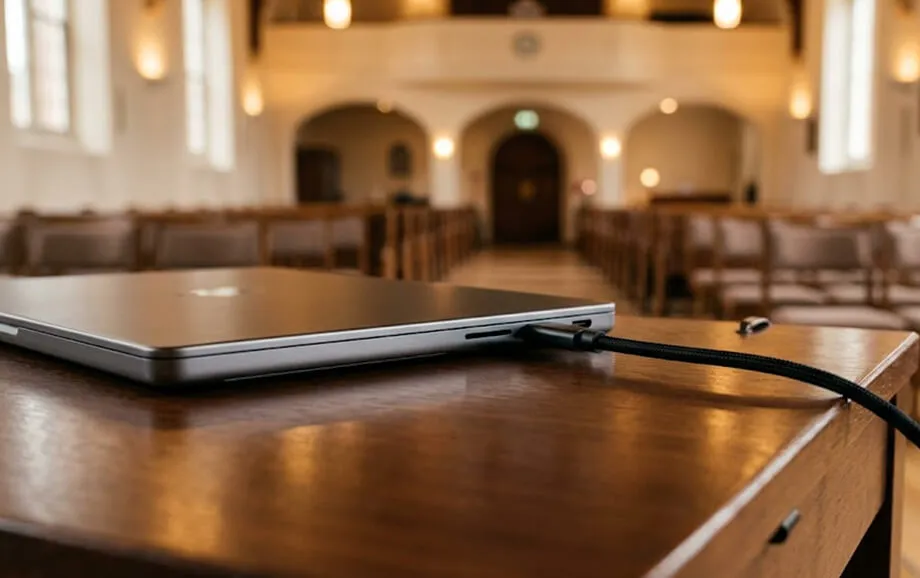
How WorshipScreen Simplifies Worship Services
A unified control environment reduces the number of actions required during a live gathering. The operator can prepare the sequence in advance and then move between different types of content from one dashboard.
The main advantage is continuity. Songs, Scripture, media, and timers remain connected to the same service plan, while the separate output window protects the congregation from seeing file directories, editing controls, or browser navigation.
Quick Switching Between Materials
During a service, the operator may need to move from a worship song to a Bible passage, display an announcement, start a video, or return to an earlier chorus. A central playlist keeps these materials available without requiring searches through several folders or applications.
The control panel allows the operator to select the necessary song section, move between Bible verses, open an image, or start a prepared video. Because the live output remains active, switching content does not require closing and reopening the presentation.
This workflow improves song lyrics display when a worship leader changes the planned sequence. The operator can return to a verse, repeat a chorus, or open another saved song while maintaining the visual continuity of the service.
The speed of switching still depends on preparation. Song sections should be labelled clearly, playlist items should follow a logical order, and videos or external links should be tested before the gathering begins.
Preparing the Worship Service Plan in Advance
Advance preparation reduces the number of decisions the operator must make during the service. Songs, Bible passages, images, videos, and timers can be added to a playlist and arranged according to the expected order of the programme.
A well-prepared plan normally covers three stages:
adding and checking all required content;
arranging the materials in the planned sequence;
testing the complete playlist on the actual presentation equipment.
The operator should confirm spelling, slide divisions, Bible translations, background readability, image proportions, and video playback. Each external link should also be opened in advance to ensure that it is available and loads correctly.
A prepared church presentation remains flexible. If the service order changes, the operator can select another item from the playlist or add an unplanned Bible passage without recreating the entire presentation.
Controlling the Display on Different Screens
The live presentation can be sent from the computer to an LED screen, projector, or television. The connection method depends on the available ports, adapters, and display equipment used by the church.
In an extended desktop configuration, the computer treats the operator’s monitor and the congregation’s display as separate working areas. The dashboard remains on the first screen, while the live output window is moved to the second.
A compatible television may also open the presentation through its built-in browser. However, browser compatibility, video playback, internet stability, and device performance should be checked before using this method during a live service.
The service does not require the congregation’s display to show the same image as the operator’s monitor. This distinction is central to effective church screen control because it keeps administrative tools hidden while allowing the operator to continue navigating the playlist.
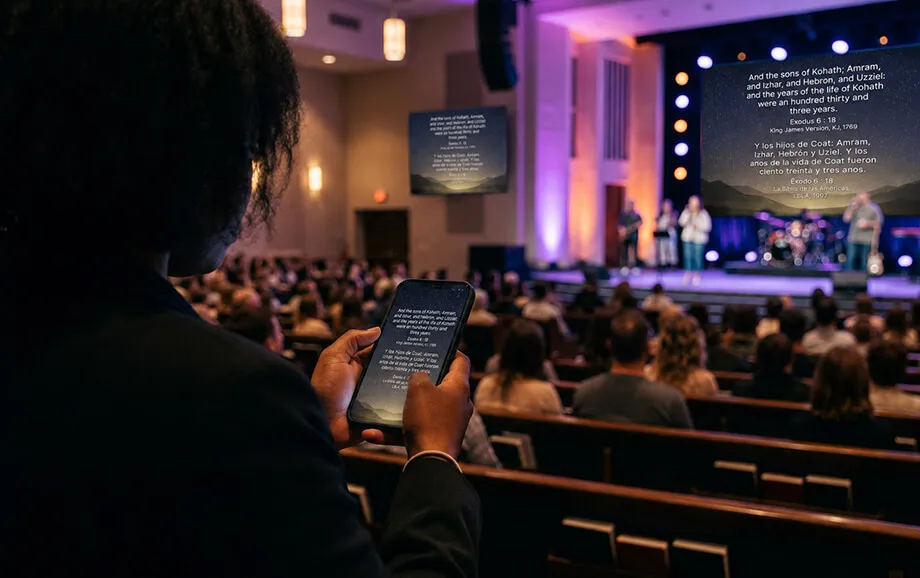
What Materials Can Be Displayed Through WorshipScreen
The platform supports the principal types of visual content used during worship services and church events. These materials can be organised within a playlist and opened from the same control interface.
The exact presentation workflow depends on the type of content. Text materials require clear formatting and suitable backgrounds, while images and videos must be prepared for the resolution and proportions of the output screen.
Song Lyrics and Bible Passages
Songs can be entered into a reusable library and divided into sections such as verses, choruses, and bridges. The system turns these marked sections into separate slides, reducing the need to format every screen manually.
During the service, the operator selects the section required by the worship leader. This makes song lyrics display easier to manage when the congregation needs to repeat a chorus or return to an earlier verse.
Text appearance can be adjusted through font, colour, alignment, and text-position settings. Backgrounds should provide sufficient contrast so that the words remain legible from different parts of the room.
Bible passages can be added to the playlist before the service. The operator can move between verses during a sermon or reading and open an additional passage if the speaker refers to Scripture that was not included in the original plan.
Images and Videos
Images can be used for announcements, event information, sermon illustrations, church branding, or neutral visuals between programme sections. They may appear as standalone slides or as backgrounds for text.
Videos can support teaching, introduce an event, present a recorded message, or accompany another part of the service. The platform supports uploaded media and YouTube links, although online playback depends on the stability and available bandwidth of the internet connection.
Before the service, the operator should check five technical details:
The aspect ratio of every image and video.
The resolution required by the output display.
The readability of text placed over visual backgrounds.
The availability and loading speed of external links.
The audio routing used when a video includes sound.
Testing audio is especially important. The computer may send sound through an HDMI connection, a separate audio interface, or the church sound system. The correct audio output should be selected and tested before the presentation begins.
Multimedia Materials for Services
A complete presentation can combine songs, Bible passages, images, videos, background media, and timers. Organising these formats within one playlist helps the operator follow the structure of the service without opening a separate program for every content type.
The built-in timer can count down a selected period or display the time remaining until a specified moment. It may be used before the service begins, during a break, or between programme sections.
A consistent visual system makes the church presentation easier to follow. Fonts, text positioning, backgrounds, image proportions, and transitions should follow the same basic style so that the screen does not appear visually fragmented.
The platform does not replace the need for technical preparation. Media files, external links, video playback, audio output, and screen settings must still be tested on the equipment that will be used during the gathering.
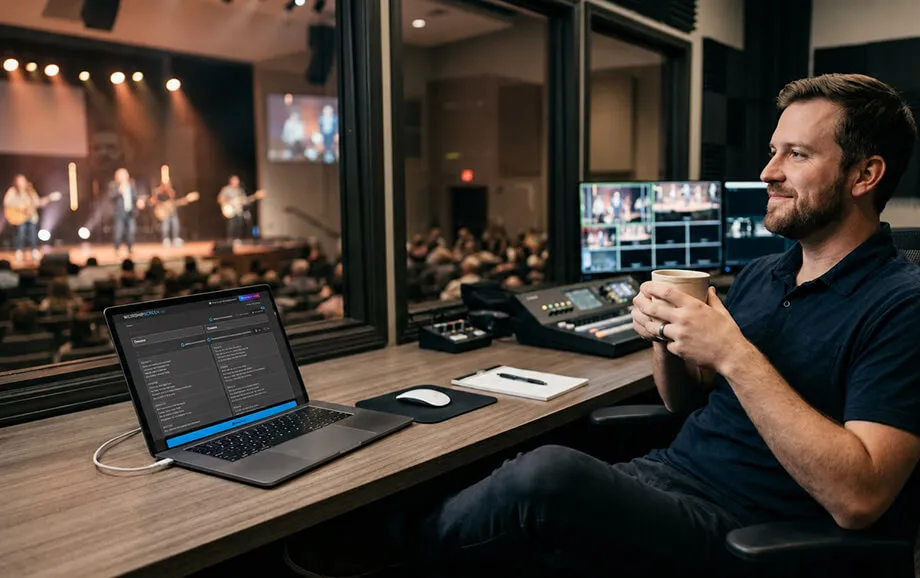
Benefits of Managing from One Computer
Using one computer as the central presentation device reduces the number of systems the operator must monitor. It also creates a clearer relationship between the prepared service plan, the control interface, and the content shown to the congregation.
This approach is particularly practical for churches that rely on volunteers or do not maintain a large technical department. One trained operator can manage the main visual materials without coordinating several independent presentation devices.
Simple Operation for the Operator
The control process is based on familiar actions: selecting playlist items, choosing song sections, moving between verses, opening media, and activating a timer. Advanced video-production knowledge is not required for the basic workflow.
The separation between the control panel and live output also reduces confusion. The operator can make changes in the dashboard while the congregation continues to see only the active presentation content.
As worship service software, the platform keeps the main controls in one location. New volunteers still need training, but they do not have to learn several unrelated applications before managing a basic service.
Churches should prepare a short internal procedure covering account access, playlist naming, song formatting, display connection, browser setup, and emergency actions if the internet connection or external screen becomes unavailable.
Less Equipment and a Simpler Process
One presentation computer can simplify a workflow that would otherwise rely on separate applications or devices for song lyrics, Bible passages, image slides, and video playback. The same machine controls the content library, playlist, live output, and connected display.
This does not mean that no additional equipment is required. The church still needs an output screen, connection cables or adapters, internet access, and an audio route for videos. A backup plan is also advisable for important events.
The main simplification lies in reducing the number of active control systems. The operator does not need to change display inputs or transfer attention between several devices every time the service moves to another type of content.
Centralised worship service presentation control also makes troubleshooting more direct. If the output is incorrect, the operator can check the playlist, browser window, display settings, and physical connection from the same workstation.
More Control During the Worship Service
Live services do not always follow the prepared order exactly. A worship leader may repeat a song section, a pastor may refer to another Bible passage, or a planned video may need to be skipped.
A central dashboard allows the operator to respond without interrupting the live output. The required material can be selected from the playlist, while editing controls remain hidden from the congregation.
This arrangement helps reduce several common operating errors:
opening the wrong file from an unrelated folder;
displaying the control interface on the main screen;
losing time while switching between different applications;
selecting an unreadable background or incorrectly formatted slide;
failing to follow an unplanned change in the service order.
Reliable operation still depends on preparation and attention. The playlist should be reviewed from beginning to end, and another volunteer should know the basic operating procedure in case the primary media operator becomes unavailable.
Try WorshipScreen for Worship Service Management
A church can begin by creating an account, adding frequently used songs, and preparing a playlist for an upcoming service. Bible passages, images, videos, backgrounds, and timers can then be arranged in the required order.
WorshipScreen brings the essential presentation tools into one browser-based workspace. One computer can be used to prepare content, operate the control panel, and send a separate live output to a projector, television, or LED screen.
Register, connect the presentation display, and use the service for reliable worship service presentation control, clear Scripture presentation, and coordinated visual media from one central device.